Connection Guide
Pair a Nikon mirrorless with Zensō over Wi-Fi.
Contents
- Create a fresh camera profile
- Prefer the 5 GHz band
- Open Wi-Fi Connection (STA Mode)
- Choose the same Wi-Fi or hotspot
- Let the camera obtain an IP address
- Keep the connection wizard open
- Permissions used by Zensō
- Find the camera in Zensō
- Confirm pairing on the camera
- Connection ready
- Create a fresh camera profile
- Open Connect to computer
- Create a profile
- Choose Search for Wi-Fi network
- Choose the same Wi-Fi or hotspot
- Record the camera IP address
- Keep the connection wizard open
- Permissions used by Zensō
- Find the camera in Zensō
- Confirm pairing on the camera
- Connection ready
Zensō connects to Nikon cameras over your local Wi-Fi. Choose your camera type below and follow the steps on the camera, then return to Zensō to finish pairing.
Use Connect to Smart Device and Wi-Fi Connection (STA Mode).
Create a fresh camera profile
For every new device or new network, create a new profile on the camera. Do not reuse a profile created for SnapBridge or another app.
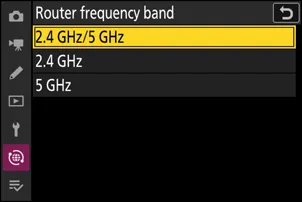
Prefer the 5 GHz band
Set Router frequency band to 5 GHz. This usually gives a smoother and more stable connection.
- Maximize CompatibilityOn
Open Wi-Fi Connection (STA Mode)
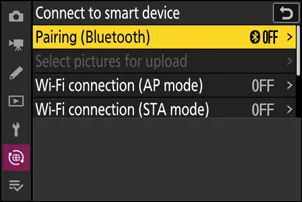
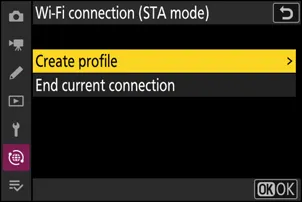
On the camera, open Connect to Smart Device, choose Wi-Fi Connection (STA Mode), then create a profile.
Choose the same Wi-Fi or hotspot
Connect the camera and this device to the same Wi-Fi network or to a hotspot from another device. If this device is sharing a personal hotspot, connect the camera to that hotspot.
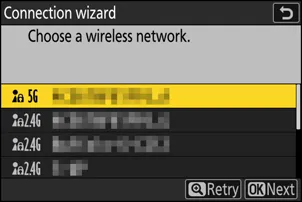
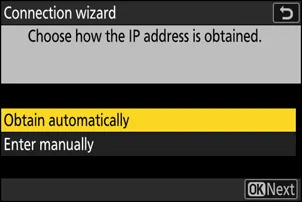
Let the camera obtain an IP address
Use automatic IP assignment when possible. If the camera displays the assigned IP address, keep it visible or write it down.
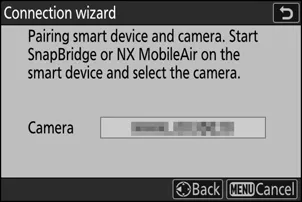
Keep the connection wizard open
When the camera waits for the other device, stay on that screen. Do not exit the connection wizard before Zensō connects.
Permissions used by Zensō
Local Network access is requested when you scan for cameras. Location is requested only when you turn on features that use location.
Find the camera in Zensō
Return to the home screen and pull down to scan. When your camera appears, select it and follow the prompts on the camera and in Zensō.
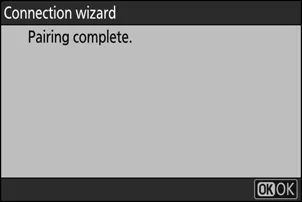
Confirm pairing on the camera
After Zensō finds the camera, follow the camera prompt and confirm the connection.
Connection ready
When the camera shows that the connection is complete, return to Zensō and start using camera controls, Live View, gallery, and downloads.
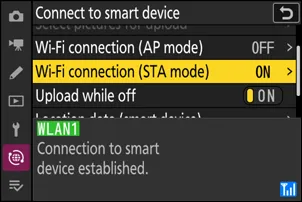
Use Connect to computer or Connect to PC, then Search for Wi-Fi network.
Create a fresh camera profile
For every new device or new network, create a new profile on the camera. Do not reuse a profile created for SnapBridge or another app.
Open Connect to computer
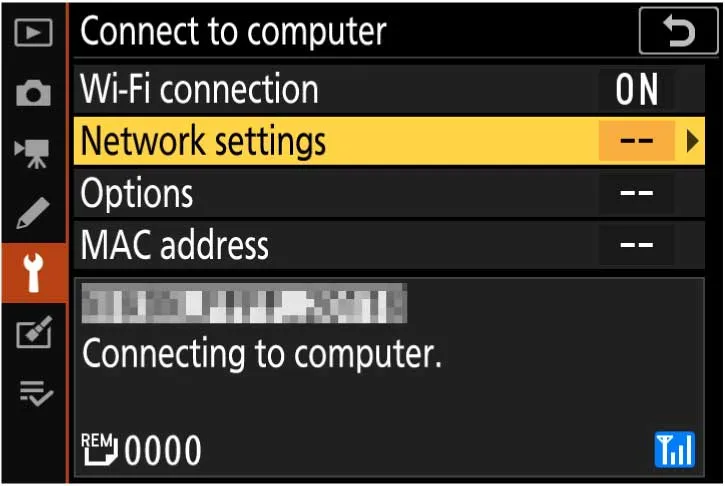
In the camera setup menu, open Connect to computer, then Network settings. Some older cameras call this menu Connect to PC.
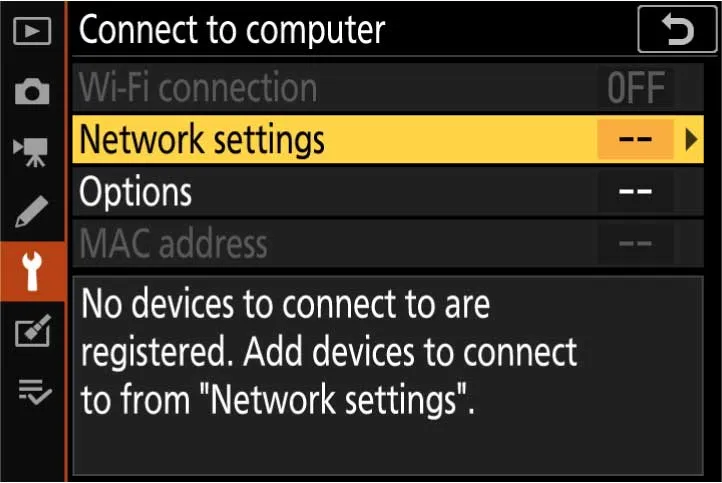
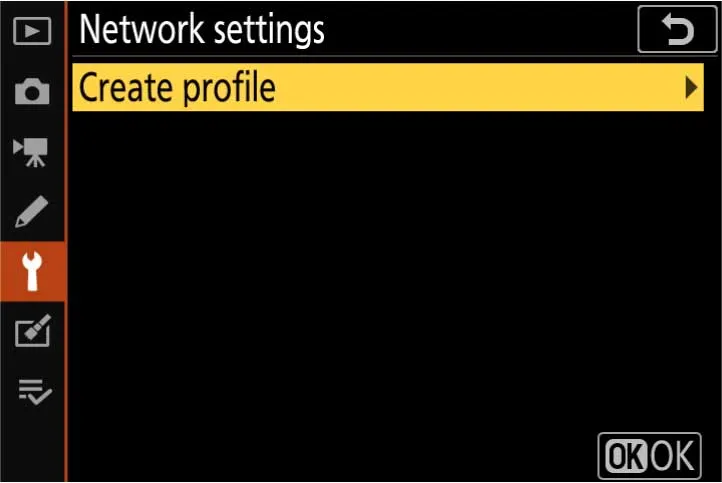
Create a profile
Choose Create profile to make a new connection profile for this device and network.
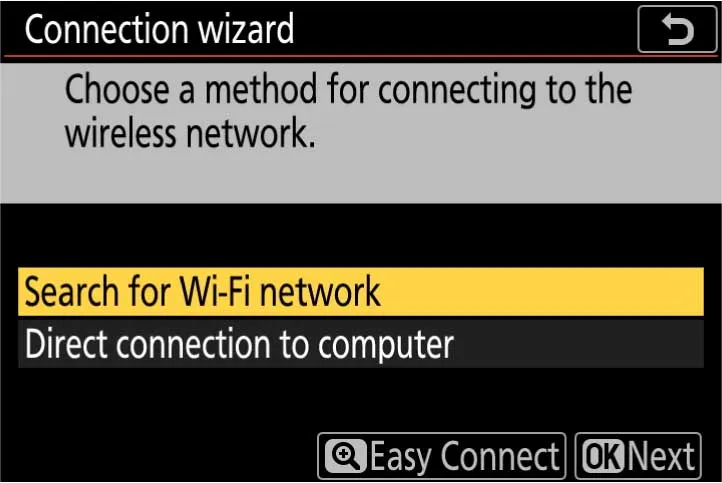
Choose Search for Wi-Fi network
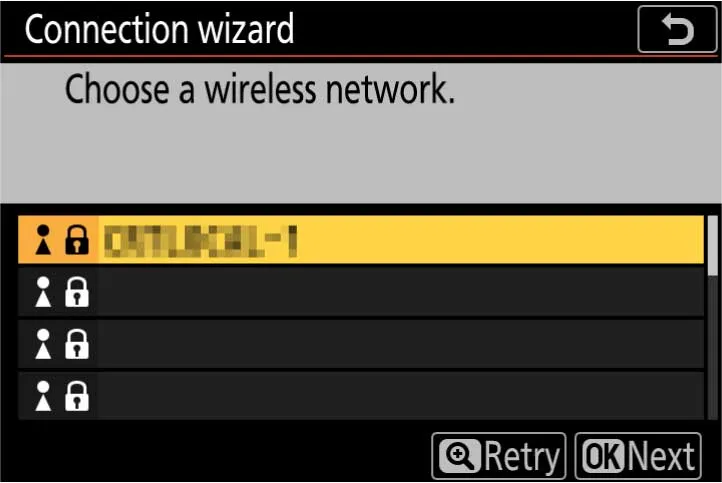
Choose Search for Wi-Fi network so the camera joins an existing Wi-Fi network.
Choose the same Wi-Fi or hotspot
Connect the camera and this device to the same Wi-Fi network or to a hotspot from another device. If this device is sharing a personal hotspot, connect the camera to that hotspot.
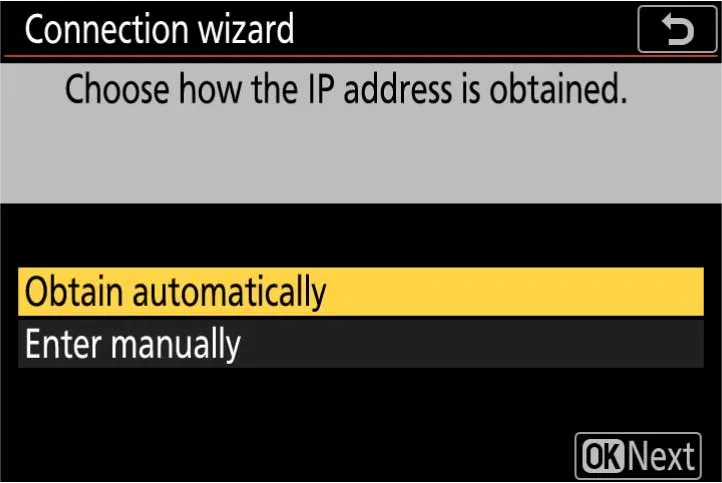
Record the camera IP address
After the camera joins the network, keep the displayed IP address visible or write it down. You can use it for manual connection in Zensō.
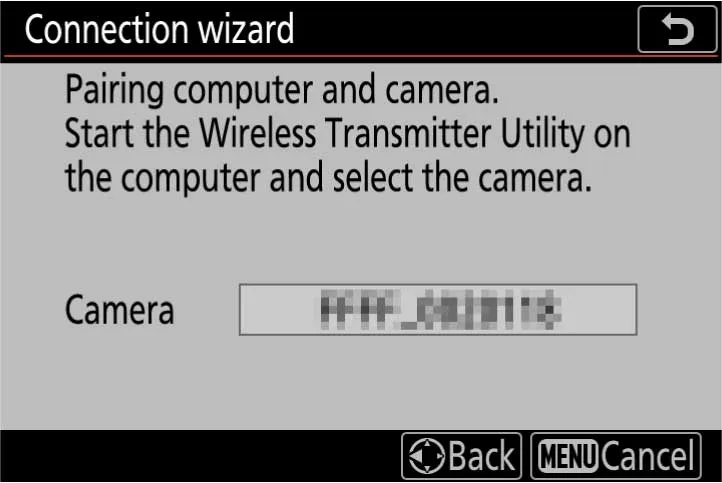
Keep the connection wizard open
When the camera waits for the other device, stay on that screen. Do not exit the connection wizard before Zensō connects.
Permissions used by Zensō
Local Network access is requested when you scan for cameras. Location is requested only when you turn on features that use location.
Find the camera in Zensō
Return to the home screen and pull down to scan. When your camera appears, select it and follow the prompts on the camera and in Zensō.
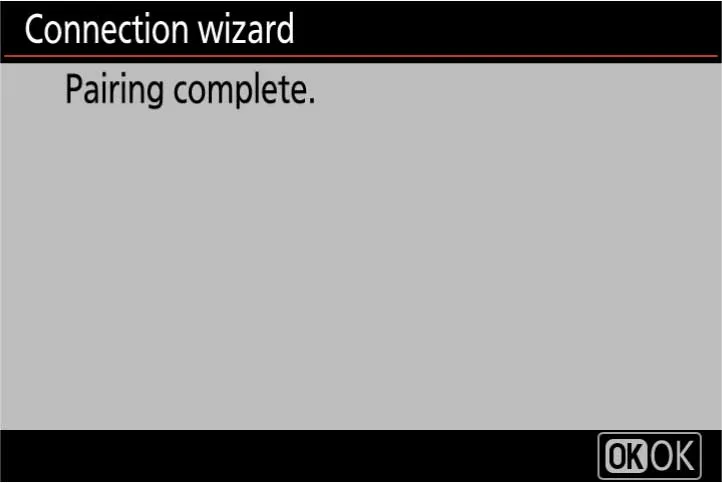
Confirm pairing on the camera
After Zensō finds the camera, follow the camera prompt and confirm the connection.
Connection ready
When the camera shows that the connection is complete, return to Zensō and start using camera controls, Live View, gallery, and downloads.